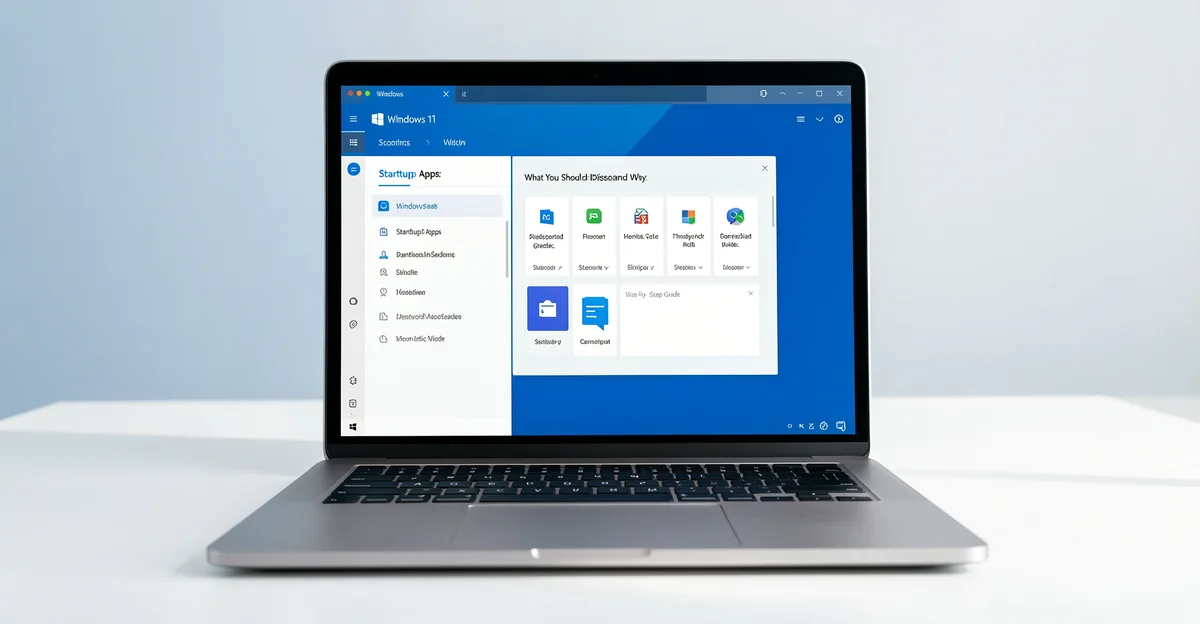
Is your Windows 11 PC taking longer than it should to reach the desktop? The culprit is often the collection of programs that launch automatically every time you sign in. Understanding Windows 11 startup apps is the first step toward a faster, more responsive system—whether you’re setting up a single laptop or managing hundreds of machines across an organization.
In this guide, we’ll explain what startup apps are, which ones are safe to disable, and why turning off the wrong items can cause problems. Beginners will learn simple, step-by-step tweaks, while IT administrators will find practical advice for streamlining deployments and improving user experience.
Introduction
When you press the power button on a Windows 11 PC, a surprising amount of activity begins before you ever see the desktop. Dozens of small programs—known as startup apps—launch automatically in the background. Some are genuinely useful, such as your audio driver control panel or cloud sync client. Others are unnecessary, resource-hungry, and responsible for slow boot times, high memory usage, and sluggish performance even on modern hardware.
This guide covers Windows 11 Startup Apps: What You Should Disable and Why in practical, step-by-step detail. Whether you are a beginner trying to make a laptop feel faster or an IT administrator managing a fleet of corporate devices, the principles are the same. You need to know what is launching, why it is launching, and how to make safe, informed decisions about disabling it. We will look at the built-in Task Manager and Settings interfaces, the deeper Startup Apps folder, and policy-based management for organizations.
A key fact to keep in mind throughout: always verify software compatibility with your hardware architecture (ARM64 vs x86). Windows 11 runs on both traditional Intel/AMD x86-64 processors and ARM64 chips such as the Snapdragon X series. Some startup utilities and background agents are compiled only for one architecture. Installing or forcing an x86 startup tool on an ARM64 device can trigger emulation overhead or outright failure, and disabling a vendor agent that manages architecture-specific drivers can destabilize your system.
Key Concepts
Before touching any settings, it helps to understand a few terms that appear repeatedly in Windows 11 startup management.
- Startup apps: Programs configured to run automatically when a user signs in. They are listed under Task Manager > Startup apps and in Settings > Apps > Startup.
- Startup impact: A Windows estimate (Low, Medium, High, or Not measured) of how much a given app delays the login process. High-impact apps are the best candidates for review.
- Background processes: Executables that continue running without a visible window. Many startup apps become background processes after launching.
- Registry Run keys: Locations such as HKCU\Software\Microsoft\Windows\CurrentVersion\Run and the equivalent HKLM path. Apps launched from here often have no toggle in Task Manager.
- Startup folder: A filesystem location that executes shortcuts at sign-in. Both per-user and all-users versions exist.
- Services: Long-running background components managed by the Service Control Manager. These are not the same as startup apps and should be changed with caution.
- Scheduled tasks: The Task Scheduler can trigger programs at logon, startup, or on a timer. These are invisible to the Startup apps list.
Another important concept is dependency separation. An app may have two components: a user-facing launcher and a background helper. Disabling the launcher is usually safe; disabling the helper may break updates, syncing, or hardware features. Always identify which component you are toggling.
Finally, remember that keeping your operating system updated before installation prevents dependency conflicts. Windows 11 updates deliver newer .NET runtimes, Visual C++ redistributables, and driver frameworks. If you install or modify startup software on an outdated build, you risk missing runtimes that the app expects, which leads to silent failures or error dialogs at every boot.
Deep Dive
Windows 11 offers three main surfaces for managing startup behavior, and each has different scope and risk.
Task Manager (Startup apps tab)
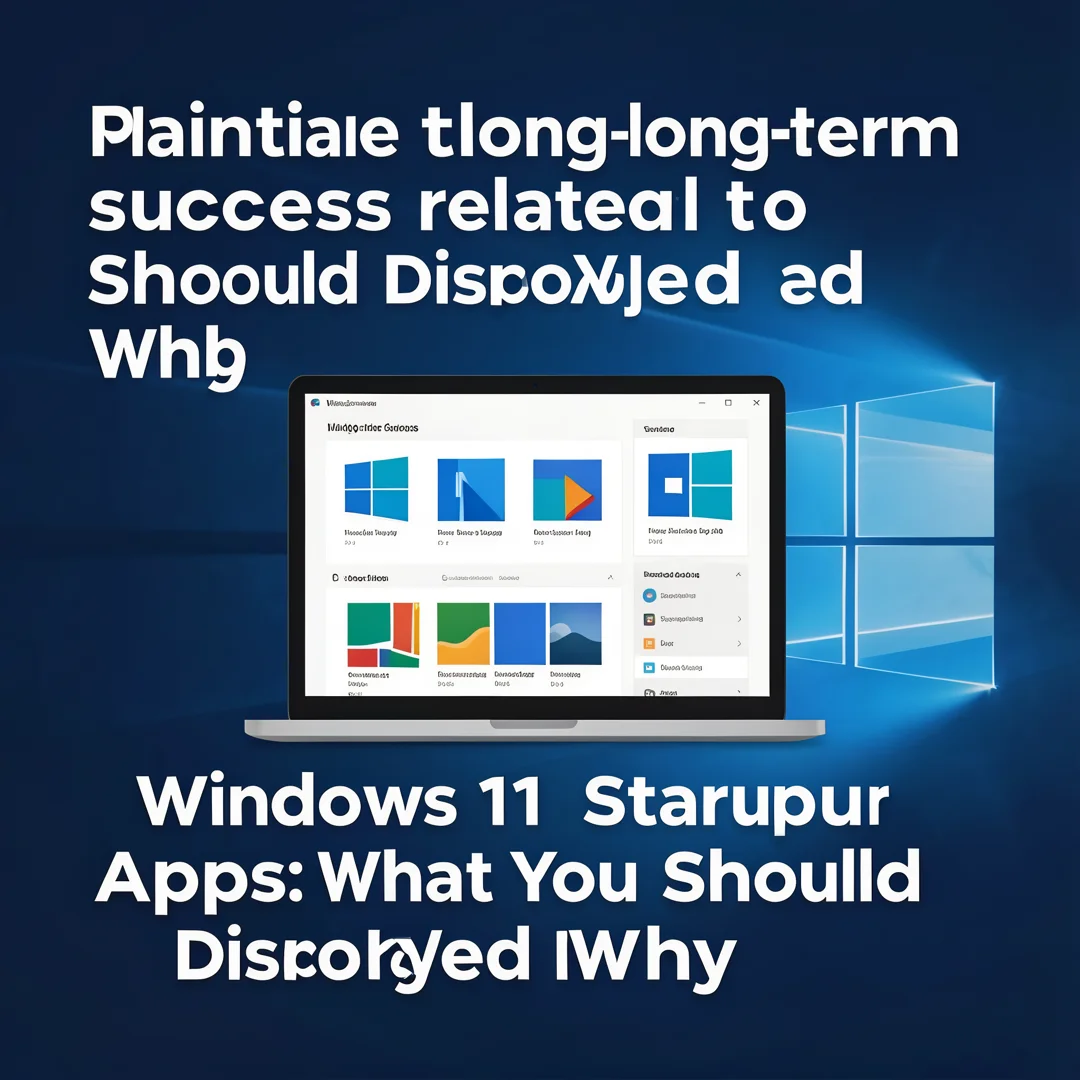
Open Task Manager with Ctrl+Shift+Esc, then select the Startup apps icon. This view lists per-user startup entries with a name, publisher, status, and startup impact. Right-click any entry to enable or disable it. This is the safest first stop because changes are reversible and scoped to your user profile. Disabling here does not delete the program; it simply stops automatic launch.
Settings app
Go to Settings > Apps > Startup. This mirrors most of the Task Manager list but in a simpler toggle format. It is convenient for beginners, but it does not show startup impact or the underlying command line, so it is less informative for troubleshooting.
Deeper locations: Startup folder, Registry, and Task Scheduler
Some programs resist the standard toggles. They may place shortcuts in shell:startup (per-user) or shell:common startup (all users), or add values to Run keys, or create logon-triggered scheduled tasks. For thorough administration, check all of these. Use msconfig or the Registry Editor carefully, and prefer Task Scheduler’s GUI over direct registry edits when possible.
Services versus startup apps
Services like Windows Update, Print Spooler, or antivirus engines are managed in services.msc. They are not listed as startup apps because they start before user sign-in. Disabling a service can break core functionality and is generally outside the scope of simple startup optimization. If a vendor app installs both a startup entry and a service, disabling only the startup entry is the conservative choice.
Architecture and compatibility
On ARM64 devices, many traditional x86 startup utilities run under emulation. They still function but consume extra CPU and battery. Always verify software compatibility with your hardware architecture (ARM64 vs x86) before installing new background agents or assuming an existing one is harmless. Likewise, ensure Windows is updated before installation to prevent dependency conflicts with missing runtimes.
Step-by-Step: Optimizing Windows 11 Startup Apps
Step 1: Understand the fundamentals
Start by learning the difference between a startup app, a background service, and a scheduled task. Open Task Manager and read the Startup apps list without changing anything. Note the Publisher column—entries with no publisher or an unfamiliar name deserve scrutiny. Also check Settings > Apps > Startup for a second view. The goal at this stage is observation, not action. Knowing what each entry does prevents you from disabling your audio driver or security agent by mistake.
Step 2: Assess your starting point
Measure current performance so you can prove improvement later. Record boot time roughly by timing from power-on to desktop, and note memory usage in Task Manager’s Performance tab. In the Startup apps list, sort by Startup impact to see which entries Windows considers High. Write down every enabled item, its publisher, and whether you recognize it. For IT administrators, this is the point to document a baseline across representative hardware, including both x86 and ARM64 machines.

Step 3: Set clear goals
Decide what success looks like. A home user might aim for a boot time under 30 seconds and idle memory below 4 GB. An IT administrator might target a standardized startup profile that reduces helpdesk tickets and battery drain on laptops. Goals keep you from over-disabling. If an app is required for compliance, security, or user productivity, it stays enabled regardless of its startup impact. Write your goals down and use them as a decision filter.

Step 4: Gather necessary resources
Collect what you need before making changes. This includes administrator credentials, a system restore point, and documentation of your current configuration. Verify that Windows is fully updated, because keeping your operating system updated before installation prevents dependency conflicts. If you plan to install or reinstall vendor utilities, confirm their compatibility with your CPU architecture—ARM64 versus x86—on the vendor’s official site. For managed environments, have your Group Policy or Intune templates ready so changes can be deployed consistently rather than one machine at a time.
Step 5: Apply the core methods
Now make changes in order of increasing risk.
- Open Task Manager > Startup apps and disable obvious high-impact, non-essential entries such as updater helpers, game launchers, and promotional agents.
- Use Settings > Apps > Startup to confirm the toggles match.
- Check shell:startup and shell:common startup folders for stray shortcuts.
- Review Task Scheduler for logon-triggered tasks from third-party software.
- Inspect Run registry keys only if you are comfortable, and export a backup first.
- Reboot and test. If something breaks, re-enable the last item you disabled.
For IT administrators, package these decisions as policy. Use Group Policy or Intune configuration profiles to control which startup entries are permitted, and document approved exceptions. Avoid disabling services unless you fully understand their dependencies.
Step 6: Monitor your progress
After changes, measure again. Compare boot time and idle memory against your baseline. Use Task Manager’s Startup impact column and Resource Monitor to confirm that disabled items are no longer loading. Check the Event Viewer for unexpected errors at logon. If a user reports a missing feature, correlate it with the change log before re-enabling anything. Set a quarterly review so that new software updates do not silently add startup entries back. Monitoring turns a one-time cleanup into an ongoing maintenance routine.
Best Practices
- Make one change at a time so you can attribute any problem to a specific action.
- Create a restore point before editing the registry or disabling multiple items.
- Prefer Task Manager and Settings toggles over registry edits for everyday use.
- Keep Windows updated; it prevents dependency conflicts with runtimes new apps require.
- Verify architecture compatibility (ARM64 vs x86) before installing background tools.
- Do not disable security software, touchpad or audio drivers, or enterprise management agents.
- Document every disabled item, including the reason and date, especially in managed environments.
- Recheck startup entries after major application updates, which often re-add themselves.
- Use policy-based management for fleets rather than manual per-device changes.
- Test on a pilot group before rolling a startup profile out organization-wide.
FAQ
How long does it take to complete Windows 11 Startup Apps: What You Should Disable and Why?
For a single home PC, the process typically takes 20 to 45 minutes, including baseline measurement, review of Task Manager and Settings, checking the Startup folder and Task Scheduler, and a confirming reboot. If you also clean registry Run keys and scheduled tasks, allow up to an hour. For IT administrators deploying a standardized startup policy across many devices, plan a pilot phase of a few days plus a staged rollout, so total project time can range from one to several weeks depending on fleet size and testing requirements.
Do I need prior Linux experience?
No. Windows 11 startup management is entirely within the Windows ecosystem. Task Manager, Settings, the Startup folder, Task Scheduler, and the.
You now have a complete workflow for Windows 11 Startup Apps: What You Should Disable and Why. Keep your system updated, monitor resource usage, and revisit this guide when software versions change.
Next steps: harden your server firewall, set up automated backups, and explore related tutorials linked above.
Leave a Reply